CurseForge Discord Bot Manager - Release Tool
Python tooling, Tkinter UI, Discord bot workflow, CurseForge API integration
- Problem
- Tracking several CurseForge projects by raw IDs made release announcements, channel routing, and testing awkward to manage from Discord alone.
- Work
- Adapted an existing release bot into a local desktop manager with tracked-mod tables, CurseForge search, Discord-style previews, per-game/per-mod routing, stats, tests, reset tools, and screenshot-safe settings.
- Tech
- Python, Tkinter, Discord bot workflow, CurseForge API, local ignored runtime state, Windows launchers
- Result
- Mod release tracking becomes a visible workflow: see followed projects, preview announcements, route messages, validate config, and inspect release state without editing config by hand.
Links
- GitHub repository: CurseForge Discord Bot Manager
- Original fork source: jordan-dalby/CICDodo
Screenshot
Overview
CurseForge Discord Bot Manager is my adapted fork of a Discord bot that watches CurseForge projects and posts release announcements.
The original bot already handled the core idea: monitor projects and notify Discord when a new file is released. My version focuses on the part I needed day to day as a mod author: making that workflow visible, editable, and less fragile.
I wanted to track multiple mods, see what each ID actually was, route announcements by game or by specific mod, test messages before sending them publicly, and avoid manually editing config values every time the list changed.
So I built a Windows desktop manager around the bot.
The latest iteration was about making the tool feel less like a thin control panel and more like a practical release workstation: a scrollable app layout, clearer start/stop controls, configuration validation, safer reset/backup behavior, and a local Discord-style preview before posting announcements.
What It Does
- tracks configured CurseForge project IDs
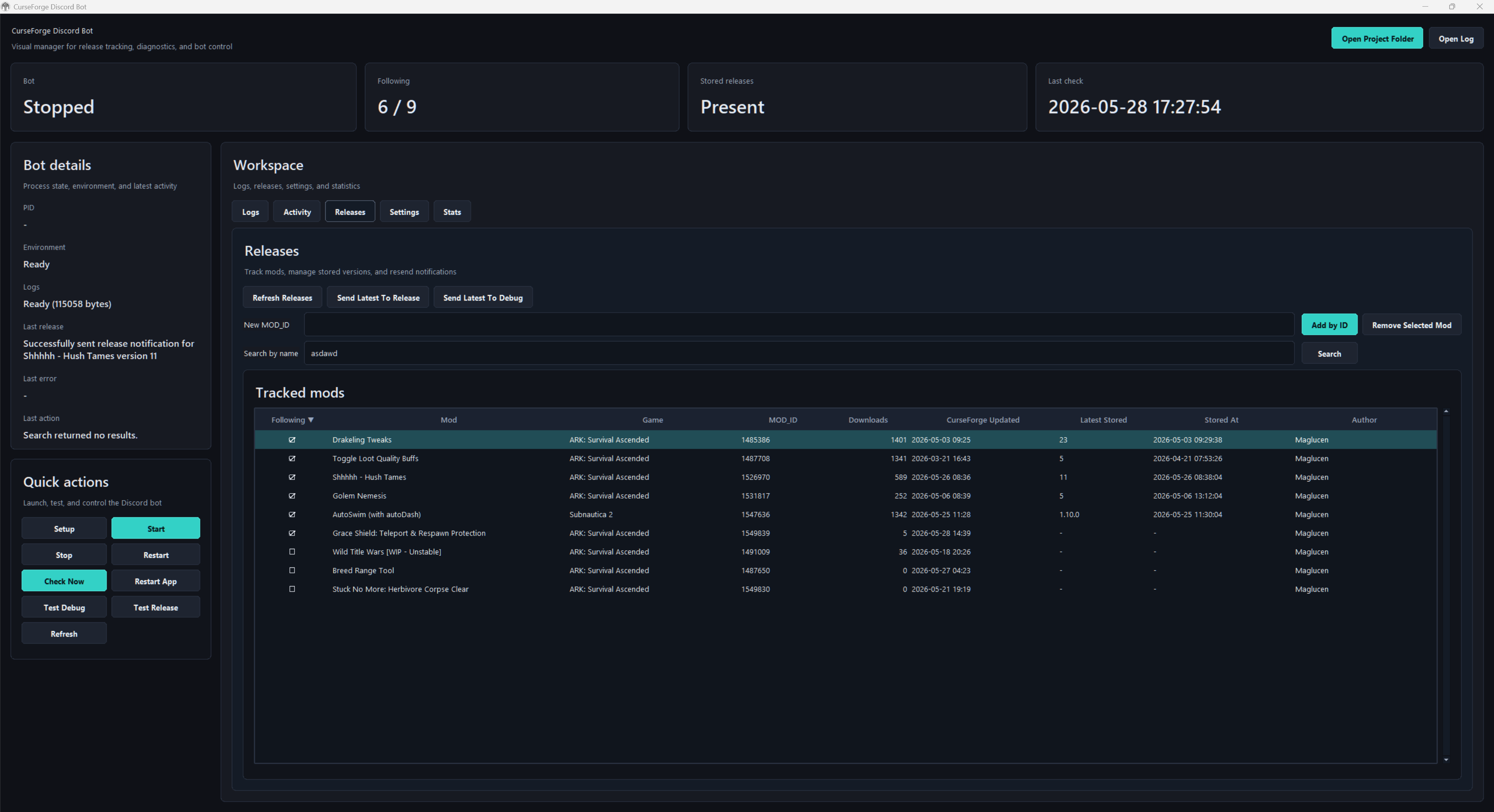
- shows readable mod names, authors, games, downloads, likes, update dates, and stored versions
- lets me add a mod directly by
MOD_ID - lets me search CurseForge by mod name or author and add the selected result
- filters CurseForge search by detected game, or searches all games globally
- supports followed/unfollowed state for configured mods
- routes announcements by global defaults, per-game defaults, or per-mod overrides
- supports global, per-game, and per-mod mention tags
- previews the release announcement as a Discord-like message before sending
- stores sent versions so the same release is not announced twice
- can send the latest release for a selected mod to debug or release channels
- validates required runtime config before starting
- can restore
.envbackups or reset local tool state - exposes logs, latest activity, last sent release, and error state in the UI
- includes a stats view for downloads, likes, stored versions, and comments links
- prevents duplicate manager windows
- keeps
.env, local runtime files, logs, database, API keys, and UI state out of git
Tracked Mods
The main table turns a raw list of IDs into something readable.
Instead of only seeing 1547636 or 1487708, the manager resolves each project through CurseForge and shows the mod name, author, game, downloads, latest CurseForge update, latest stored release, and current follow state.
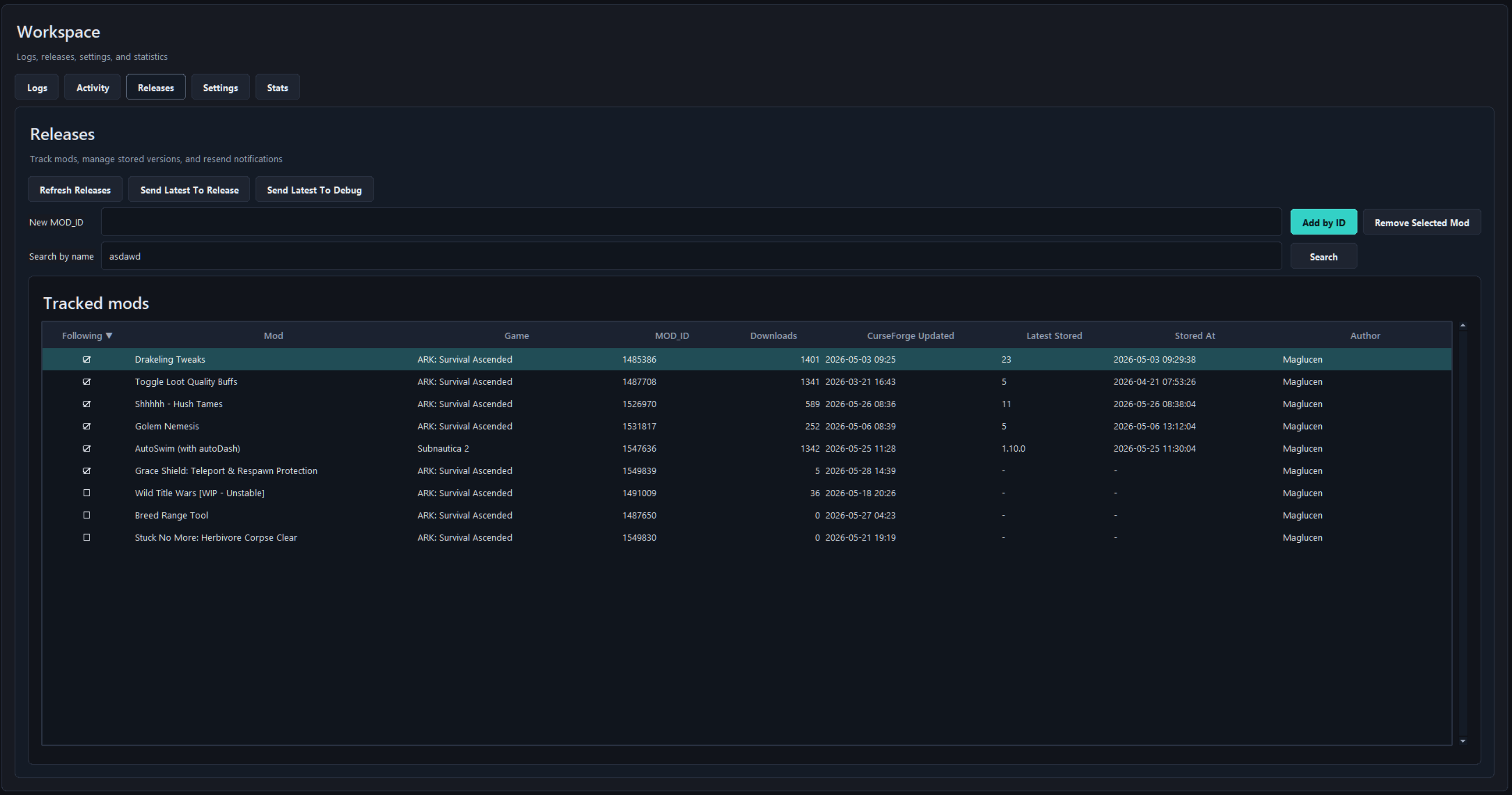
That matters because I do not only track my own projects. If I follow another mod, the author column makes it clear that it is external and not one of mine.
The columns are configurable from the table header, and the app remembers the visible columns and sort state locally.
Adding Mods
There are two add paths.
For private, unlisted, or not-yet-indexed projects, adding by MOD_ID is still the safest option.
For public projects, the manager can search CurseForge by mod name or by author and let me add the selected result.
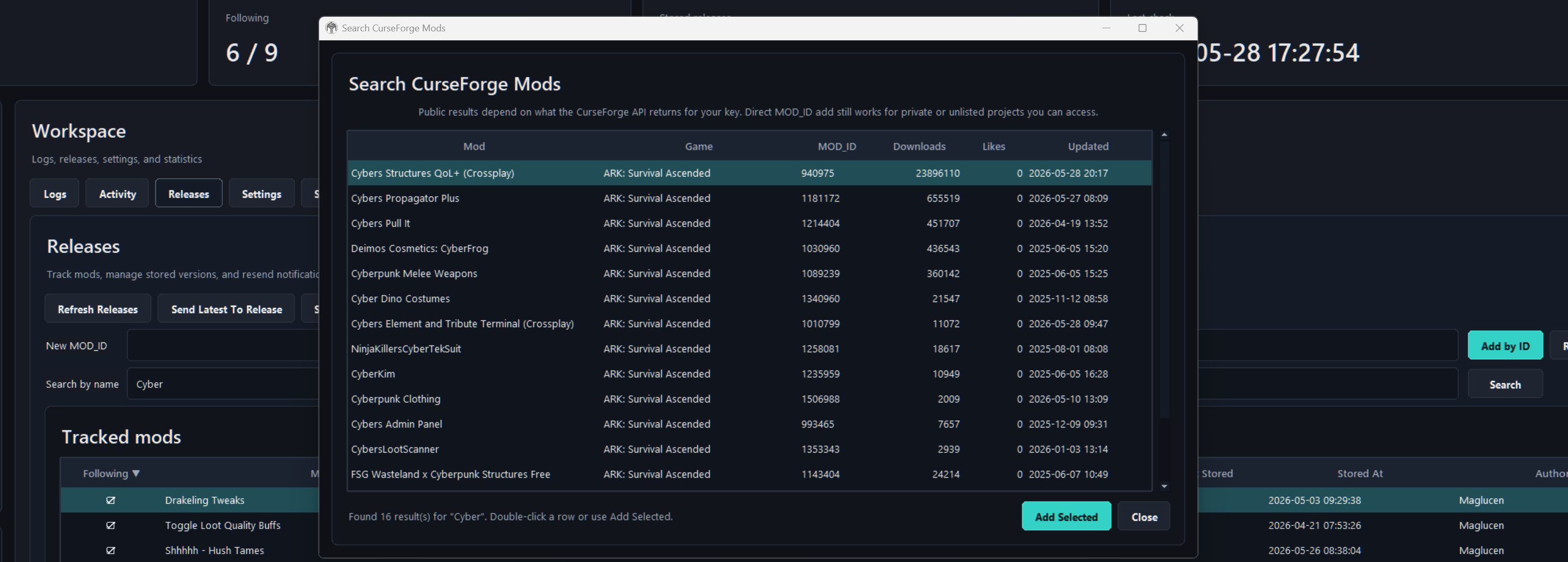
The dialog also has a game filter. All games performs a global CurseForge search, while a selected game limits results to that detected CurseForge gameId. When searching by author, the author column is hidden because every row is already matched by author.
The search depends on what CurseForge returns for the API key, so I did not remove the direct ID workflow. Both paths are useful.
Settings And Routing
The settings tab edits the runtime values that matter most without opening .env.
It includes the global message tag, debug channel, check interval, message header/footer, logo style, log level, announcement toggle, reaction toggle, legacy !commands intent toggle, and per-game defaults.
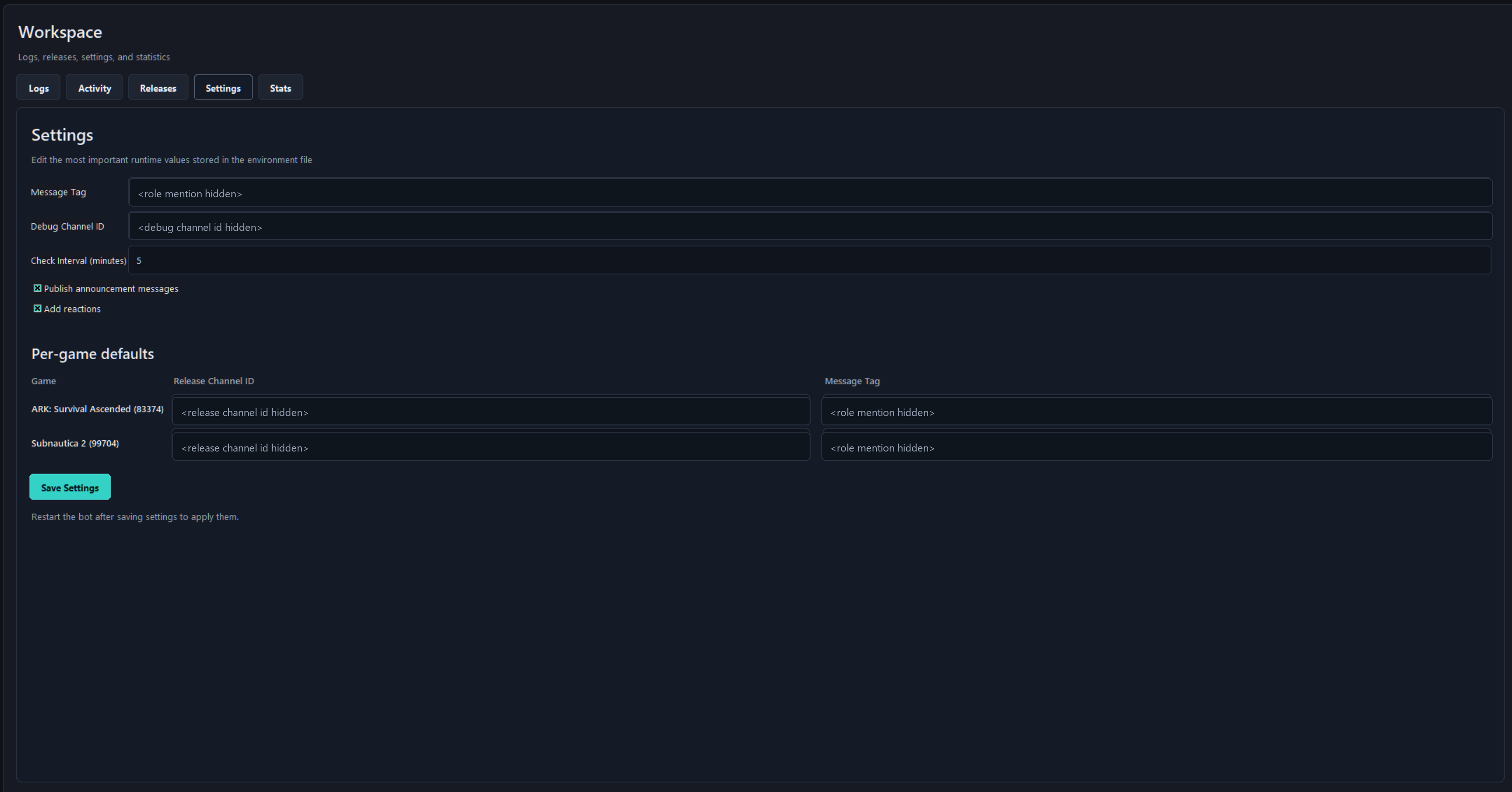
The per-game defaults are not a hardcoded list. They are generated from the games detected in the tracked mods. If I add a Subnautica 2 mod and the API returns its gameId, Subnautica 2 can appear in that section.
I also added a safe screenshot mode. It only changes what the UI displays; it does not edit .env. Discord channel IDs and mention tags are masked so I can take screenshots without leaking server-specific values.
Settings writes create a local .env backup first, so I can restore the previous config after a mistake. There is also a full reset action that stops the bot, restores .env from .env.example, and clears local logs, release storage, PID, and saved UI state.
Stats
The stats view is intentionally simple.
It gives me a compact table for downloads, likes, stored versions, update dates, and comments links.
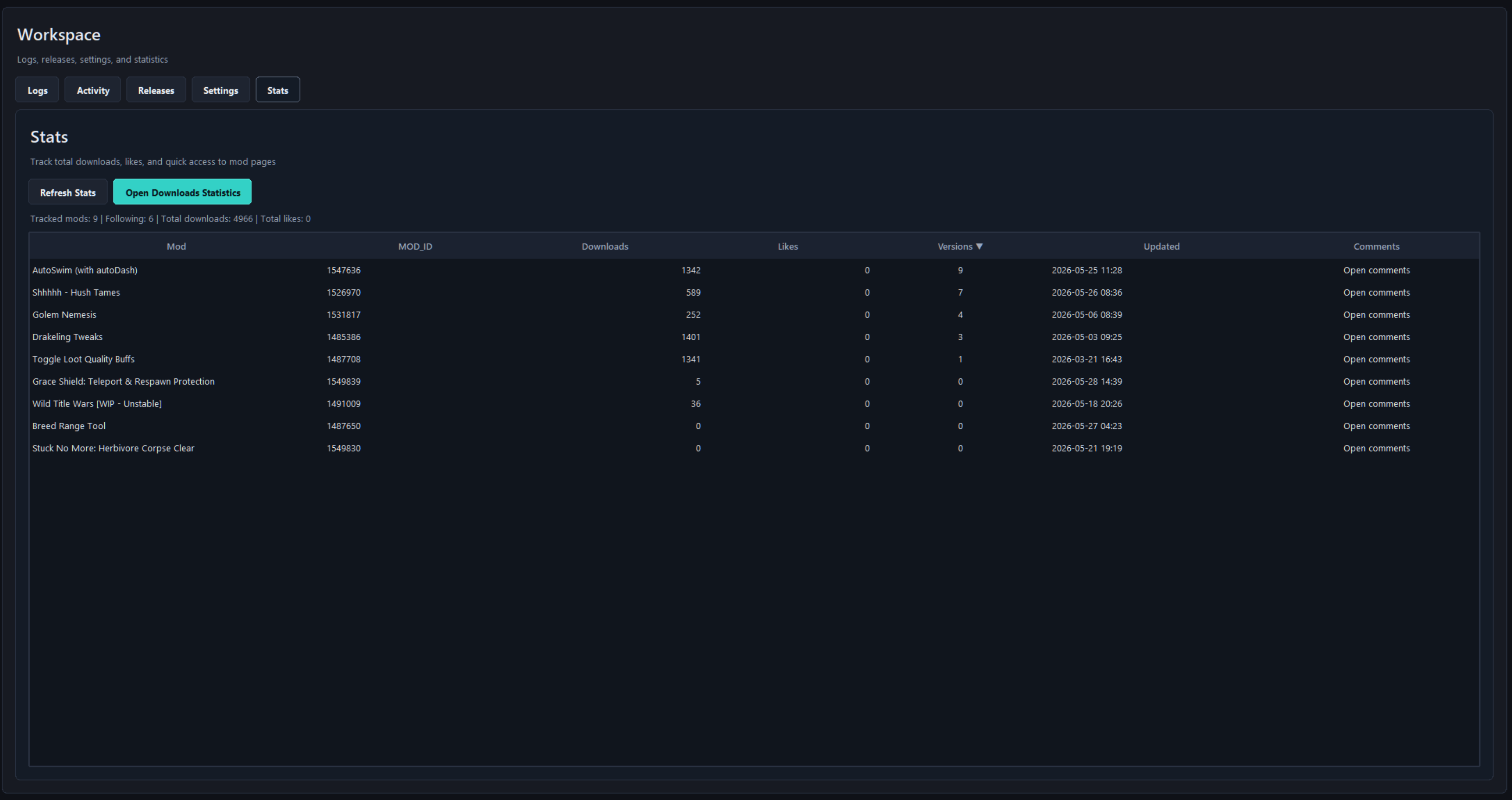
The goal is not analytics. It is a quick operational view of the projects the bot is following.
Discord Output
The actual output is a Discord release embed.
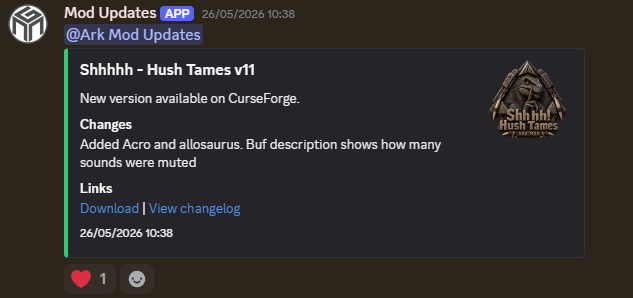
The bot can include the configured mention tag, changelog summary, release links, timestamp, reactions, and mod logo.
The manager now includes a local Discord-style preview. It is not a pixel-perfect Discord renderer, because Discord controls the final client-side display, but it approximates the message structure: mention pill, bot header, embed border, title, description, changelog field, links, logo placement, and reaction. For an exact final check, I can still send the latest release to the debug channel before posting it to the release channel.
Implementation Summary
The app is built in Python with Tkinter and runs locally through a Windows shortcut backed by a small VBS launcher.
The desktop manager wraps the existing bot workflow instead of replacing it. It can create .env from .env.example, create the local virtual environment, start or stop the bot, validate config, run a one-time update check, send test notifications, inspect logs, and update tracked mod configuration.
Runtime state lives under .local/: virtual environment, logs, release database, PID file, window geometry, and UI preferences. That keeps the repository clean and avoids committing machine-specific or sensitive data.
The manager also has a small single-instance control socket. If I open the launcher twice, it asks the previous manager window to close instead of leaving duplicate windows running.
Discord message sending is centralized so bot commands, scheduled checks, one-time checks, and manual sends share the same embed, mention, reaction, and publish behavior.
Scope
This is still personal tooling.
It is public because the workflow is useful to show and could be adapted by another CurseForge/Discord setup, but it is not trying to be a polished SaaS dashboard or a general moderation bot.
The value is in making my own publishing workflow less error-prone: know what is tracked, know where it announces, preview or test the message, validate config before starting, and keep release state visible.
Result
The result is a practical release-tracking tool around the way I publish mods.
It turns a config-heavy bot into a small desktop workflow: track projects, inspect state, change routing, preview output, test debug sends, and publish announcements without constantly editing raw environment values.
Want to talk about this kind of work?
Share the project where it fits. X opens with a question draft; LinkedIn shares the article link.